Fill&Buy, the order you type yourself
When a listing will not open on iTaoBuy, Fill&Buy lets you submit it by hand. Whatever you type becomes the instruction the buyer follows, so it is worth typing carefully.
Checked 16 October 2026
The notice of 25 July 2025, and the button that stayed
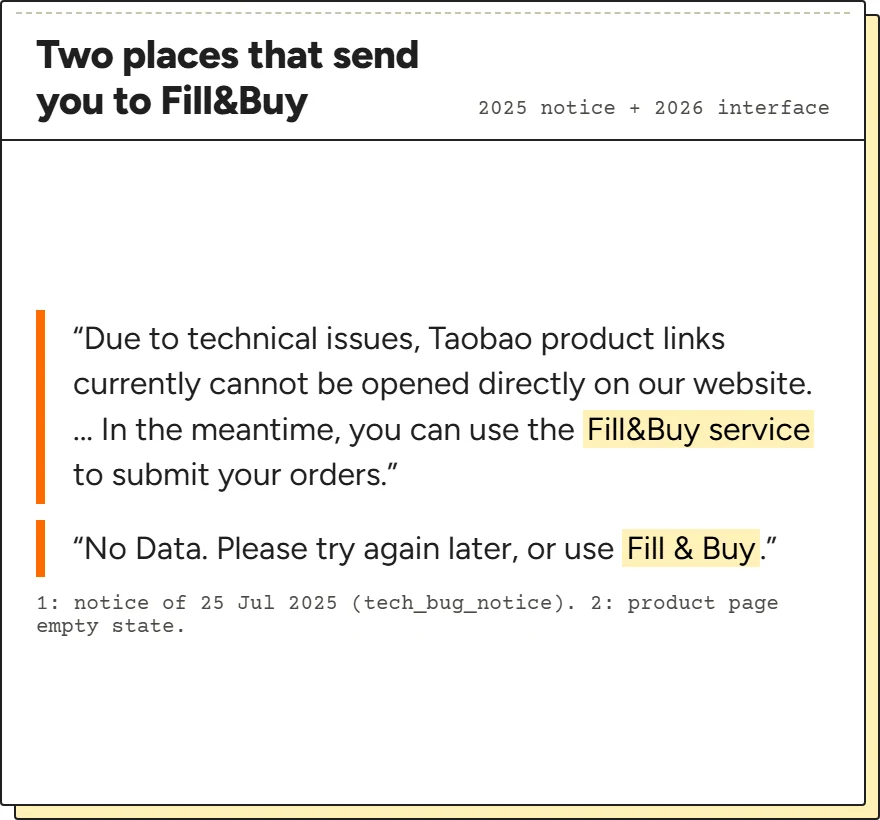
iTaoBuy introduced Fill&Buy to most buyers through a short notice dated 25 July 2025: “Due to technical issues, Taobao product links currently cannot be opened directly on our website.” Until that was fixed, buyers were told to go to the navigation bar, select Fill&Buy, enter the product link, specifications and price, and submit. In the app the route was a Fill & Buy tile on the home screen.
The notice called it a temporary solution. Fifteen months later Fill&Buy is still in the site's top navigation next to Estimation and Forwarding, and the product page's empty state, the one you see when a link cannot be read, offers a Fill & Buy button under the words “Please try again later, or use Fill & Buy”.
So treat it as a normal way to order, not an emergency exit. It is also the way to order from a listing that iTaoBuy's product page reads wrongly, for example with the wrong options shown. Read the July 2025 notice for the original wording.
The product information block, field by field
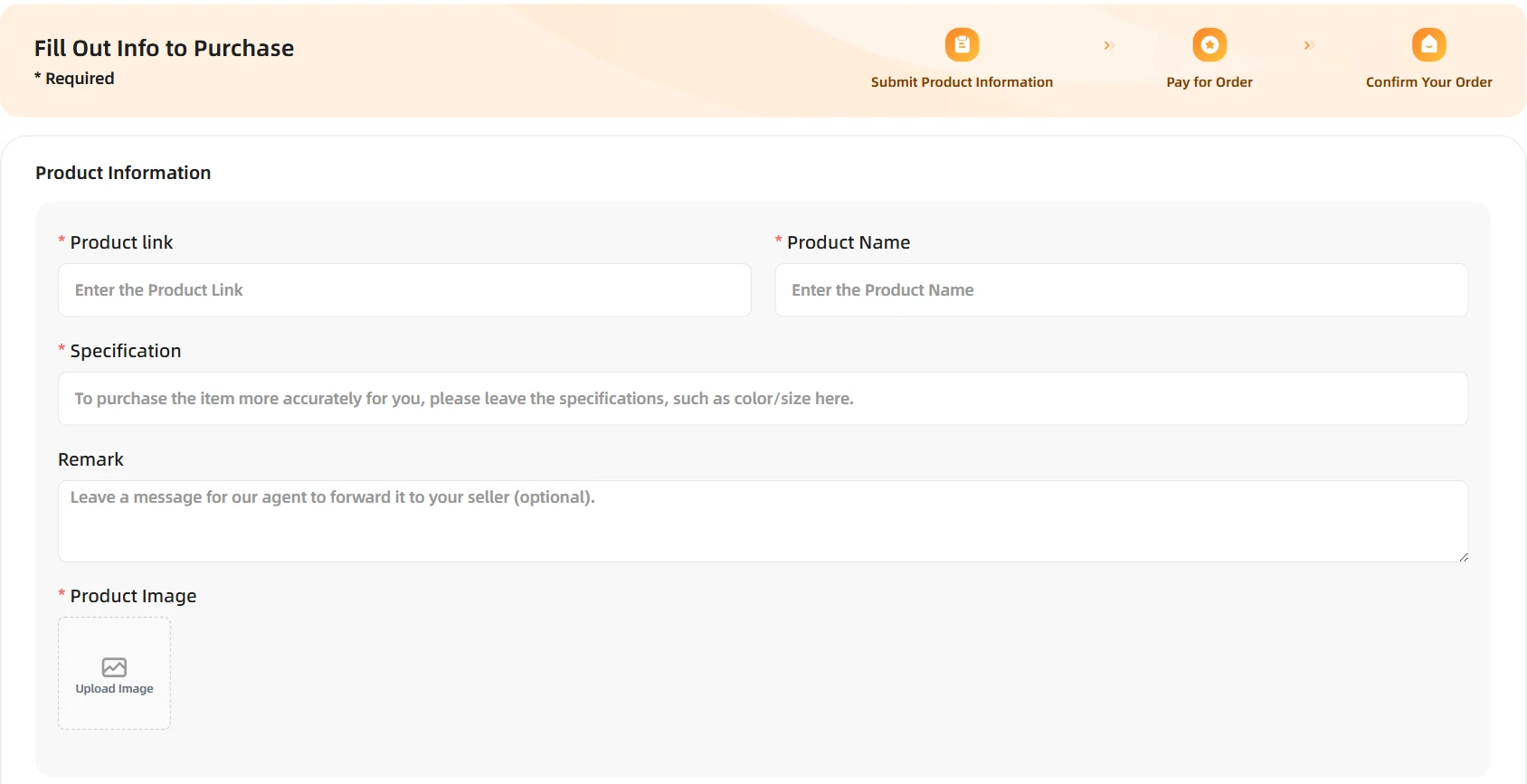
The form opens with a three-step strip, Submit Product Information, Pay for Order, Confirm Your Order, and then the Product Information block. Four of its five fields are required. Product link has to be an address the form accepts (its error text reads “Enter the correct product link”). Product Name is free text, so write it in a way you will recognise later, not the seller's keyword-stuffed title.
Specification is the field that decides the order. Its placeholder says: “To purchase the item more accurately for you, please leave the specifications, such as color/size here.” Remark is optional, and its placeholder says the agent forwards it to the seller. Product Image is required; a screenshot of the listing with your option selected is the most useful thing to upload, because it shows the option in the seller's own words.
Purchase fee, quantity and the agreement line
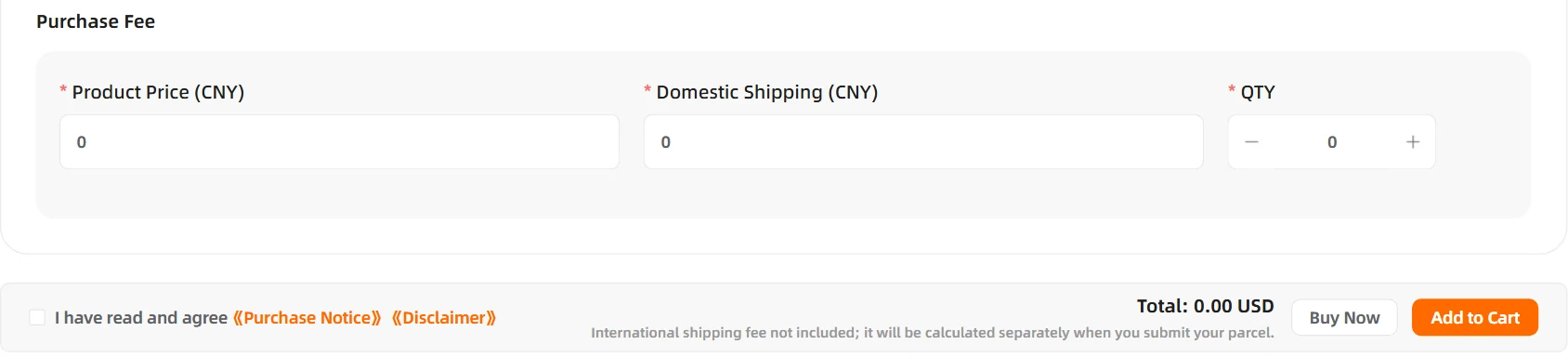
The Purchase Fee block asks for three numbers: Product Price (CNY), Domestic Shipping (CNY) and QTY. The shipping placeholder spells out what it means: “Enter the Shipping Fee from the Seller to the iTaoBuy Warehouse”. The interface text also carries a message asking for “a shipping fee greater than 0”; we did not submit an order to see whether a seller's free shipping can be entered as zero, so if the listing ships free, ask in the chat before you guess.
Below the block, a checkbox reads “I have read and agree” with links to a Purchase Notice and a Disclaimer. The total is shown in your display currency, with the line “International shipping fee not included; it will be calculated separately when you submit your parcel.” The price you type here is the figure the buyer compares with the seller's price; if they differ, the supplementary payment rule applies.
A specification the buyer cannot misread
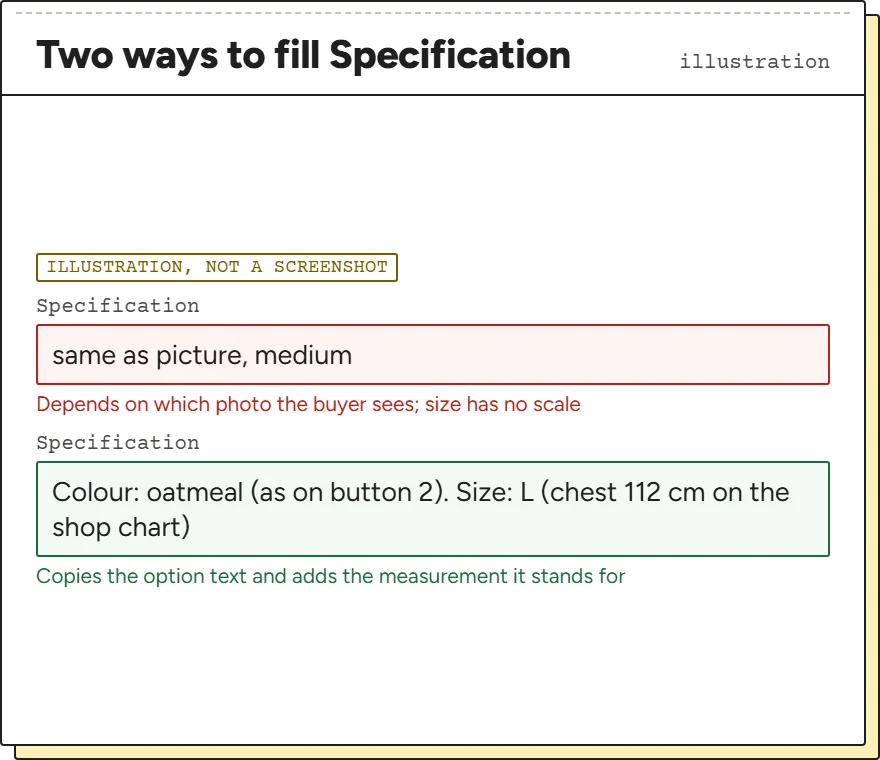
The buyer reads your specification line and looks for the matching option button on the seller's page. Everything that makes that match easy helps, and the best way is to copy the button text itself. If the option is in Chinese, paste the Chinese; if you only see a translation, add it after the original.
Name every dimension the listing has. A listing with colour, size and a version needs all three, in the order the seller lists them. Avoid words that depend on the photo you happened to look at, such as “the one in picture 3” or “same as image”. The buyer may see a different photo order, and a guess is how a mismatch starts.
Then repeat the essentials in the Remark if the listing is unusual, for example when two options look alike.
The Remark box is a note to the seller, through the agent
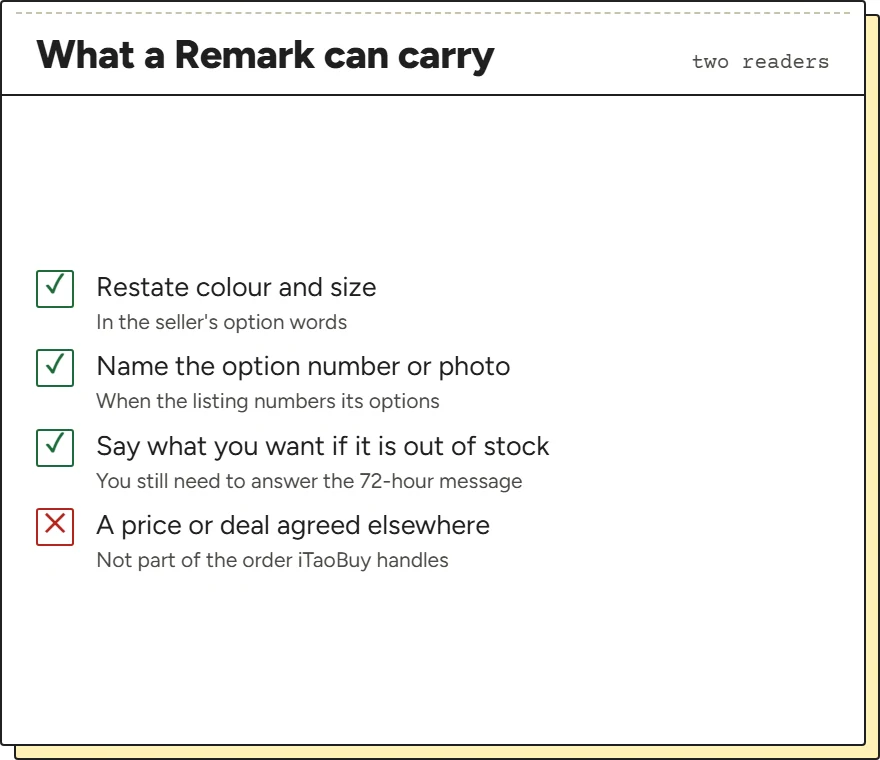
The placeholder for Remark reads “Leave a message for our agent to forward it to your seller (optional).” So it has two readers: the buyer at iTaoBuy and, after them, the seller. Keep it short and factual, and write instructions that either of them can act on without asking you.
Useful remarks are about the option, not about hopes. Restate the colour and size, name the photo or option number if the listing uses numbers, and say what you want if the option is gone. That last point matters because of the 72-hour rule: when the seller says the item has run out and no answer from you arrives within 72 hours, the buyer cancels the order. A remark does not replace that reply, but it tells the buyer your preference in advance.
Do not put anything in the Remark that changes the deal, such as a price agreed in a private chat.
Checking a Fill&Buy order against its source order
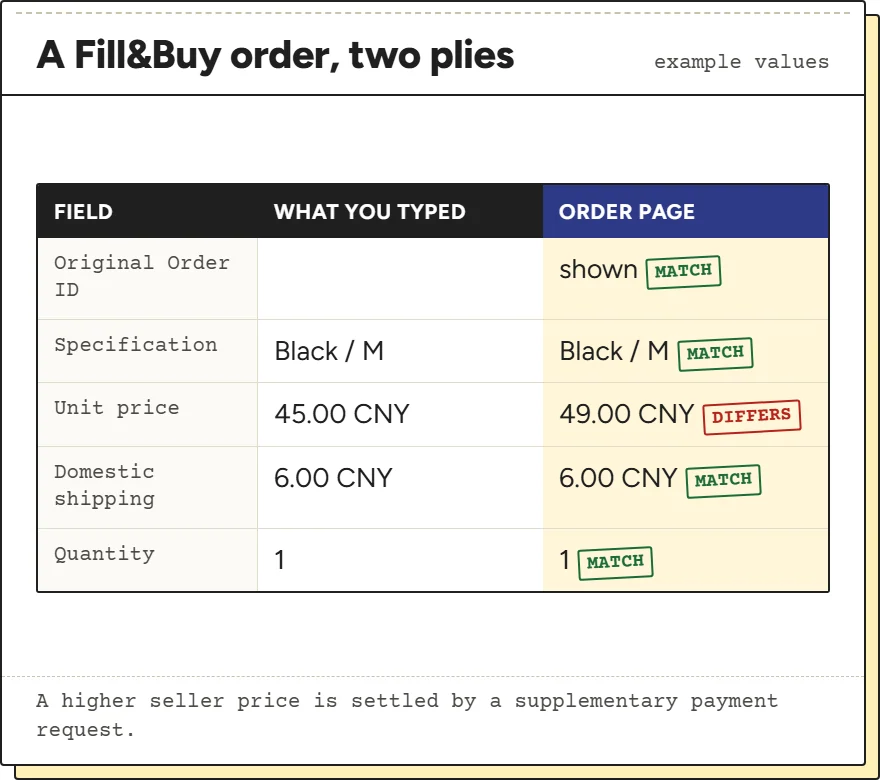
With Fill&Buy, your white ply on the match sheet is exactly what you typed: product name, specification, price, domestic shipping and quantity. Copy those across before you submit, because the form is the only record of them until the order page appears.
When the order reaches Purchased, compare in this order. First the Original Order ID: it should be there. Then the specification, because a hand-typed option is the easiest thing to buy wrongly. Then the price and shipping: iTaoBuy's rule on supplementary payments is written for exactly this case, a price “inconsistent with the user's submission”.
If everything matches, keep the screenshot you uploaded. It is the evidence for the warehouse photo check that follows.